Posts

Showing posts with the label Eclipse

Creating a Custom WebSphere Portal 8 Theme with the Eclipse IDE

This is a very good IBM article on how to get started with your own custom theme for WebSphere Portal 8:  Deploying and developing IBM WebSphere Portal 8 themes: A step-by-step guide A couple of notes: While the article is mentioning RAD as a preffered tool, I was successfully able to use Eclipse IDE (with the WAS 8 server connector plugin provided by IBM).  I was working on Linux and I used the command line to mount the WebDAV shares ( WebDav Client on Linux ). You can also use Nautilus to connect to the WebDAV shares. 
Creating Portlets without RAD (IBM WebSphere Portal 8)

Image
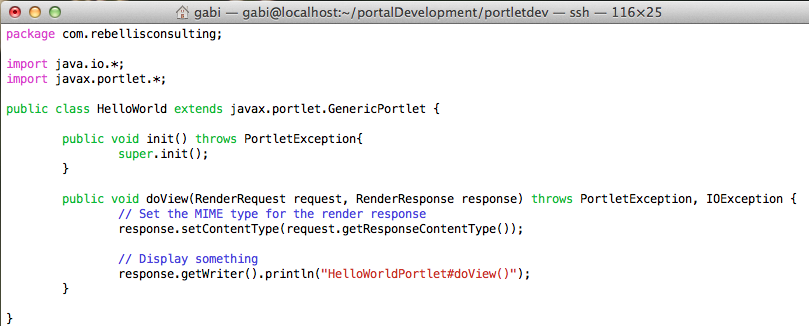
This question comes up a lot... Is there any way to create portlets for IBM WebSphere Portal if I do not have RAD available?  Rational Application Developer is the IDE of choice for IBM WebSphere Portal developers. There are a lot of advantages of using RAD for portal development (see link above for tech specs). There is a 30 days trial available for download if you would like to try it and great news for all the Apple fans:), it now works on Mac OS. However, IBM is showing you how to create a portlet form the command line:  Creating a simple portlet . Compiling would require a few Portal libraries. So if you have a portal install available and would like to give it a try, follow the following steps. This is a cheat sheet to the already existing IBM documentation above: Note: I am assuming that you are on Linux machine and there is a Portal v8 installed. Hard core portal developers that do not need all the bell and whistles of RAD can use the light weight...

Tired of GitHub? Stay tuned for RocketGit!

RocketGit will be release soon and it will be the new kid on the block. Rocketgit is neat web interface for git focusing on simplicity and usability. It enables teams to work together on software projects. Its integration with the Eclipse IDE is smooth, the documentation is short and sweet, the interface is clean and simple but very efficient and effective. Stay tuned!

RocketGit #7: Eclipse IDE: Generate SSH Key (Windows)

GENERATE SSH KEY 1. In Eclipse, navigate to:           Window --> Preferences --> General --> Network Connections --> SSH2 2. Go to the Key Management tab. 3. Click on Generate RSA Key... button. 4. Enter a Passphrase and confirm it. 5. Click on Save Private Key... and specify a name (i.e. rocketgit_rsa) IMPORT SSH KEY IN ROCKETGIT 1. In Eclipse, navigate to:           Window --> Preferences --> General --> Network Connections --> SSH2 2. Go to the Key Management tab. 3. Click on Load Existing Key... button. 4. Select the SSH key file (i.e. rocketgit_rsa) created in the previous steps. You will have to specify the passphrase. 5. Once the key was loaded, select and copy everything in the main box label above " You can paste this public key into the remote authorized_keys file: " 6. Login into RocketGit. 7. Go to Personal --> SSH Keys ...

RocketGit #6: Integration with Eclipse IDE

Image
1. Install Eclipse IDE and Git Plugin (EGIT). 2. Clone a remote git repository in Eclipse: File --> Import -->  Git --> Projects from Git --> URI 3. Copy and paste the ssh://... link of your git repository into the URI field. (Everything else will be pre-populated) 4. Click Next. You will be prompted to enter the SSH key passphrase. 5. The master branch will be listed, select and click Next. 6. Specify a Local Destination directory for your repository and click Next. 7. Import in Eclipse (you have three options: (a) import an existing Eclipse project, (b) use new project wizard, (c) import as a general project) NOTE: I chosed option (a) since my repository is already an existing Eclipse project. Click Next and then Finish. 8. Your Eclipse project was imported in your local workspace.